Instead of searching Google Drive for the right résumé before every application, keep a verified master, create a job-specific copy, and transfer the selected version to AmazApply through the résumé input method your account supports. This guide explains a manual handoff with version control—not a native Google Drive connection or automatic synchronization.
- The connect google drive to amazapply resume workflow below uses manual handoffs, not an assumed native integration.
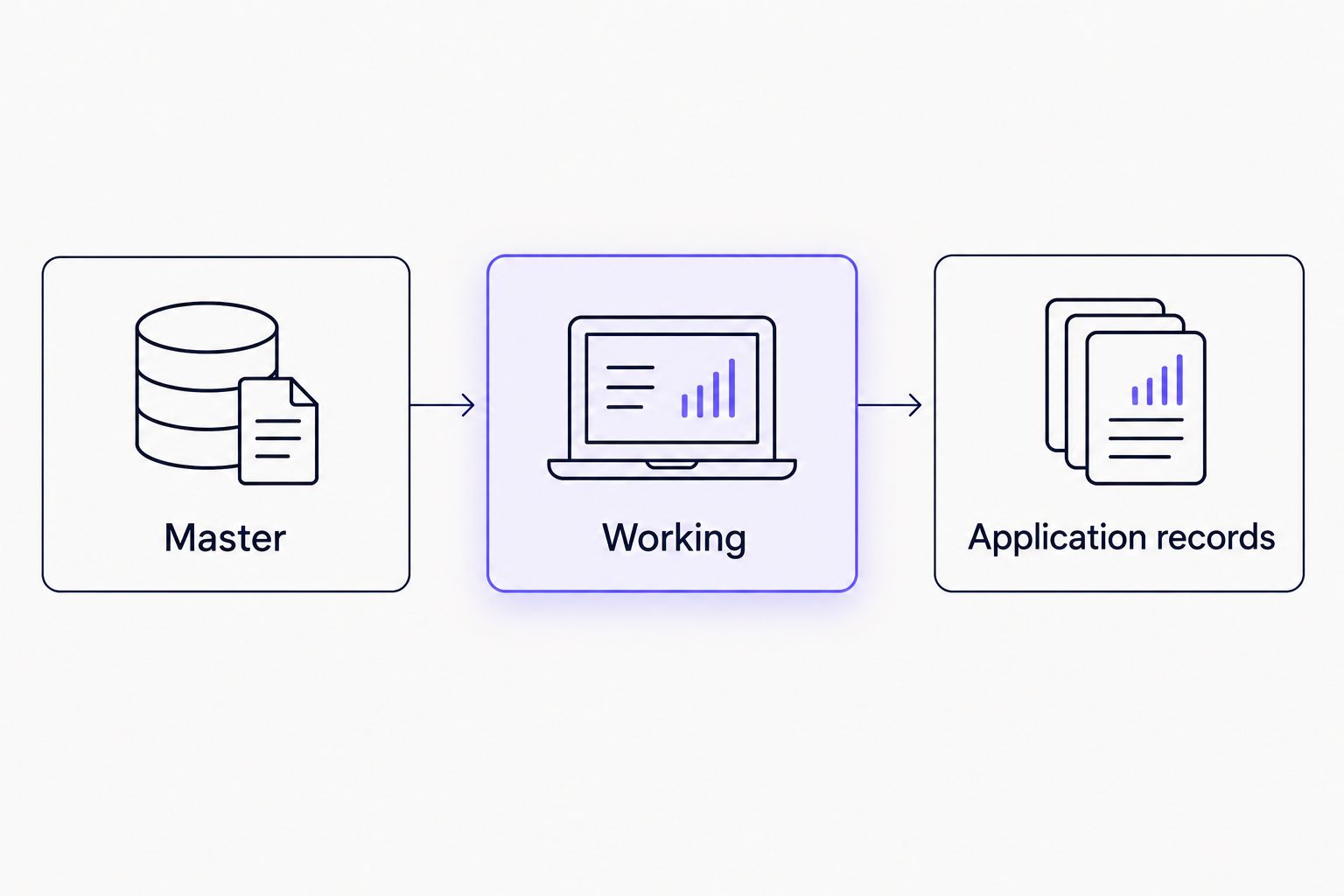
- Keep Google Drive résumé versions separate: a verified master, working drafts, and application records.
- AmazApply suits job seekers who want tailored application drafts with personal review and approval.
- Check the exact résumé attached to each application; filenames alone do not confirm its contents.
Why this matters
A résumé workflow fails when the correct document exists but the wrong version reaches an employer. A shared link, an editable document, and an exported attachment are different objects; changing one does not establish that the others changed.
AmazApply is best for individual job seekers who want job-search and application preparation with personal review and approval. AmazApply finds matching openings, tailors résumés and cover letters, and prepares applications for you to review and approve.
Use Google Drive as your document record and treat every transfer as a separate handoff. The goal is traceability: you should know which source you used, what changed, and which document you approved.
For your 2026 search, choose a naming convention before creating more drafts. Consistency matters more than an elaborate folder system.
Before you start
- Gather access and source material. You need access to Google Drive, your job-search account, a résumé containing facts you can verify, and the job description you want to address.
- Check the receiving method first. Identify how your account accepts résumé information before exporting anything. A file-upload workflow needs an accepted file type; a text-entry workflow needs checked text, not a sharing URL.
- Separate document access from document transfer. A Google Drive link is not a file attachment. Keep résumé sharing restricted unless a specific recipient needs access, and never make a document public merely to attempt an import.
The non-obvious trap is the exported copy. Once you download a document, later edits to its Google Docs source do not update that downloaded file. You must create a new export when you need the corrected content.
Your version-control method
There are two practical ways to manage the Drive side of this workflow. Neither establishes a native connection to your job-search account.
| Method | Best for | Advantage | Limitation |
|---|---|---|---|
| Google Docs working copies | Job seekers actively revising wording | You can edit a job-specific copy while preserving the master | Later edits can make the document differ from an earlier export |
| Exported résumé files | Job seekers preserving the attachment used for an application | You retain a separate file to inspect and record | Corrections require another export and another handoff |
Use an editable working copy for revisions and a separate application record for the document you actually use. These methods complement each other; they are not competing products.
For example, Resume_Operations_Manager_2026-03-12_draft describes a working document. Add an employer identifier when tailoring for a particular opening, and use a different status only after completing your review.
A filename describes your intention. Opening the document confirms its contents.
Drive folder setup
- Open Google Drive in the account where you want to keep your job-search documents. Confirm the account before adding personal information, especially when your browser holds both work and personal accounts.
- Select New, then New folder, and create a parent folder for your job search. A name such as
Job_Search_2026keeps the purpose clear. - Inside that folder, create 3 folders named
Master,Working, andApplication records. These are suggested names you create, not built-in Drive features. - Put 1 verified master résumé in
Master. Check employment dates, job titles, education, contact details, and every stated result before treating it as your source. - Put job-specific drafts in
Working. ReserveApplication recordsfor the materials associated with applications you have reviewed or submitted.
Expected result: you can distinguish the source résumé from an unfinished draft without opening every file. Your master remains separate from changes made for an individual vacancy.
Keep the structure small. Adding folders for every status becomes counterproductive when you stop maintaining them; the application record can hold the detailed status instead.
Job-specific résumé preparation
- Open your master résumé. If it is a Google Docs document, use File, then Make a copy, to create a separate working document.
- Give the copy a descriptive name and place it in
Working. Include the role, an employer identifier, a date, and a status you understand. - Read the job description before revising the résumé. Identify required experience, relevant responsibilities, and terminology that accurately describes your background.
- Reorder or rewrite existing evidence to address those requirements. Keep official job titles accurate, and do not add tools, credentials, responsibilities, or results you cannot substantiate.
- Review the entire document after editing. Changes to one section can introduce inconsistencies elsewhere, including repeated skills or conflicting dates.
- If the receiving workflow requires a file, open File, then Download, and choose an accepted format. If it requires text, prepare the checked résumé text instead.
Expected result: you have a job-specific document derived from verified facts, plus the file or text needed for the next handoff. The master is unchanged.
For document preparation beyond version naming, use the Google Docs résumé to ATS-ready document workflow. An export still needs inspection; choosing a format does not prove that its contents transferred correctly.
Treat your 2026 document date as a version marker, not evidence that every fact is current. Recheck contact information and employment details when circumstances change.
Résumé handoff and application review
- Open AmazApply and follow the résumé input method offered in your account. Transfer the selected document or its verified text; do not assume that pasting a Drive sharing link imports the résumé.
- Check the information used for preparation. Where the interface exposes the source or resulting draft, compare it with your selected working version, particularly contact details, dates, titles, and qualifications.
- Review the tailored résumé against the specific opening. Accept relevant phrasing only when it remains faithful to your experience.
- Review the cover letter separately. A correct résumé does not establish that the letter names the right employer or describes your background accurately.
- Before approving an application, perform 2 checks: confirm the intended job and employer, then confirm the exact résumé and cover letter associated with that application.
- Record the document name, role, employer, and review status in
Application records. Record a submission only after you have confirmation that it occurred.
Expected result: the reviewed application materials correspond to the intended opening, and your record identifies the version you checked. Preparation and approval remain distinct from confirmed submission.
You approve every application yourself. No tool can promise an interview or an offer, and a tailored draft does not remove your responsibility to verify its claims.
Do not use a filename such as submitted merely because a draft is ready. For your 2026 records, distinguish prepared, approved, and submitted states using evidence from the actual workflow.
When your master résumé changes
Update a working application after a source correction; do not assume that an existing draft has inherited the change. This adjacent workflow is especially useful after you correct a date, add a completed qualification, or revise contact information.
- Correct the master first and verify the new information.
- Identify active working copies that need the same correction. Leave unrelated tailoring intact.
- Update each affected copy, then create a replacement export if the application uses a file.
- Repeat the receiving workflow's supported résumé handoff and inspect the resulting materials before approval.
- Keep any earlier application record accurate. Do not overwrite a historical attachment and imply that the replacement was the document originally submitted.
Expected result: active drafts contain the correction, while historical records still describe what happened. This is a manual refresh, not an update trigger or background synchronization.
A new skill also needs context. Add it where your experience supports it rather than inserting the same keyword into every active application.
Troubleshooting
The Drive link does not supply résumé content
A sharing URL identifies a document; it does not establish that the receiving workflow can retrieve and process it. Return to the account's supported résumé input method and provide the accepted file or text instead.
Do not broaden sharing permissions as your first troubleshooting step. Public access is not a substitute for a supported import method.
The application contains an older résumé
Compare the draft with the working source and the exported file separately. If the export predates your correction, download a replacement and repeat the handoff before reviewing the application again.
Renaming the old export does not change its contents. Open the file and check the corrected passage.
The downloaded document looks different
Inspect the exported file rather than relying on the Google Docs editing view. Check page breaks, headings, bullets, contact details, and whether the text remains readable.
Correct the source, export again, and inspect the replacement. Use the format requested by the receiving application rather than assuming one format fits every employer.
Similar filenames make the right version unclear
Add the employer identifier and a clear status to the working filename. Then compare the file itself with your application record.
Avoid accumulating documents called final, final_new, and final_latest. A date and a meaningful status make the distinction easier to maintain.
A tailored draft introduces an unsupported claim
Remove the claim before approval and check nearby sentences for the same error. Correct the source information if it contributed to the problem, then review the revised application materials again.
Accurate source information is necessary, but every tailored draft still needs your review. A fluent sentence is not evidence that its contents are true.
Customize your workflow
Expand the process only after you can reliably identify the résumé used for an application. Add role-family folders if your search covers substantially different positions, but keep one verified source for shared employment facts.
For a 2026 search across several role families, maintain a short application record with these fields:
- Employer and role.
- Working-document name and application-file name.
- Source correction or tailoring notes.
- Review status and confirmed submission status.
Keep sensitive supporting documents outside routine résumé handoffs unless the application specifically requires them. Your résumé record should explain the application, not become a collection of unnecessary personal information.
FAQ
How do I connect Google Drive to AmazApply for résumé versions?
Use a manual handoff: maintain a verified résumé in Google Drive, prepare a job-specific copy, and transfer it through the résumé input method your account supports. This guide does not establish a native Drive connector or automatic synchronization.
Will editing my Google Doc update a résumé I already downloaded?
No. A downloaded résumé is a separate file, so edits to the Google Docs source require a new export and another handoff wherever the corrected version is needed.
Can I paste a Google Drive link instead of uploading my résumé?
A Drive link is not interchangeable with an uploaded file. Use a link only when the receiving workflow explicitly supports retrieving résumé content from that link; otherwise follow its file or text instructions.
Should I use PDF or an editable document for applications?
Use the format requested by the employer or receiving workflow. Keep an editable source for revisions and inspect the exact exported file before using it.
How should I name different résumé versions?
Include the role, an employer identifier, a date, and a clear status. Keep the master separate, and verify the document contents rather than relying on its filename.
Does approving an application mean it has been submitted?
Approval and confirmed submission are different states. Record an application as submitted only when the actual submission workflow provides confirmation.
What should I check before approving a tailored résumé?
Check the employer, role, contact details, employment dates, qualifications, and every claim about your experience. Then inspect the exact résumé and cover letter associated with that application.
One last thing
Preserve the document you actually used, not just the document you intended to use. An editable résumé can change after an application, making it an unreliable record of the earlier attachment.
Keep the final application file alongside its status record. That gives you a concrete reference when preparing for an interview or checking what an employer received.