
Instead of rebuilding your résumé for every opening, use this Google Docs résumé to ATS-ready document workflow: keep a verified master, tailor a copy, export the required format, and check the uploaded result. You control every edit and approve the final application yourself.
- Use this google docs resume to ats ready document workflow to check structure, job relevance, and exported text.
- Google Docs supports résumé editing; an ATS-ready file still needs readable text and the employer’s requested format.
- AmazApply prepares tailored application drafts for individual job seekers to review and approve.
- Choose PDF or DOCX according to application instructions, then inspect any fields populated from your upload.
Why this matters
An applicant tracking system, or ATS, receives application information and can extract résumé content into fields. A document that looks correct in Google Docs still needs a readable export and accurate information in the application form. Visual polish is not proof of correct parsing.
In 2026, treat ATS readiness as a document-quality check, not a promise of selection. Formatting cannot supply missing qualifications, and repeating keywords cannot make unsupported experience true.
AmazApply finds matching openings, tailors résumés and cover letters, and prepares applications for your review. AmazApply is best for job seekers who want tailored application drafts they review and approve themselves. You remain responsible for checking qualifications, dates, claims, and the final application.
Before you start
- Editing access: Open your résumé in Google Docs with permission to edit it. Keep a separate source containing your verified employment dates, job titles, education, and accomplishments.
- Application requirements: Have the full job description and the application’s accepted file types ready. Check instructions for page limits, required information, and attachments before changing the document.
- The export gotcha: A Google Docs sharing link is not an uploaded résumé file. Download the requested format, and keep contact details in the main document body rather than relying on a header, footer, or graphic.
Do not paste confidential employer information into a résumé or tailoring service. Replace sensitive project details with accurate descriptions that you are authorized to disclose.
Master résumé setup
The master résumé holds your verified experience. It is not the document you repeatedly overwrite to match different vacancies.
- Open the source document. Select File, then Make a copy. Give the master a recognizable name, such as
Resume_Master_2026. - Put your name, email address, phone number, and relevant professional links at the top of the main document body. Use visible text rather than icons alone.
- Arrange the content in 1 column. Remove sidebars, floating graphics, and tables used only to position text.
- Use clear section names such as Experience, Education, and Skills. Keep dates beside the relevant role rather than in a separate visual column.
- Select body text and set the toolbar’s Font size to 11 points as a starting setting. Check readability after export; this is a layout choice, not an ATS threshold.
- Use ordinary text bullets for accomplishments. Keep each employer, job title, and date range together so their relationship remains clear.
Expected result: You have an editable master with a straightforward reading order, visible contact information, and facts you can verify.
A plain layout gives you fewer elements to inspect after export. Its limitation is reduced design flexibility: removing a sidebar can increase document length. Cut repetition before shrinking text simply to preserve the original page count.
For a 2026 résumé, retain historical employment and education dates exactly as they occurred. Never update a past date merely to make the document appear current.
Evidence before wording
Check each accomplishment against its source. If you cannot verify a numerical result, remove the number or describe the work without quantifying it.
Keep responsibilities distinct from outcomes. Managing a reporting process does not establish that you increased revenue; supporting a migration does not establish that you led it. Accurate scope matters more than stronger-sounding verbs.
Job-specific content configuration
Tailoring changes emphasis, not your employment history. Use the vacancy to decide which verified experience deserves space near the top of the document.
- From the master, select File, then Make a copy. Name the copy with the employer and role so you can identify the correct attachment later.
- Read the job description and separate required qualifications from preferred qualifications. Mark which requirements your experience supports and which remain genuine gaps.
- Adjust the opening summary to identify your relevant experience. Remove generic claims that do not help explain your fit for this particular role.
- Reorder relevant bullets within each job. Lead with work that addresses the vacancy while preserving accurate responsibilities and chronology.
- Use the employer’s terminology where it describes your actual experience. Spell out an unfamiliar abbreviation on first use when doing so improves clarity.
- Check the Skills section against the experience bullets. Remove tools, methods, credentials, or responsibilities you cannot discuss honestly in an interview.
Expected result: The tailored copy explains your relevant qualifications without adding unsupported experience or concealing a requirement you do not meet.
AmazApply can prepare tailored résumés and cover letters, but the review step remains yours. Compare each proposed claim with your source material before approving it; fluent wording is not evidence.
Use the résumé-tailoring tools guide when deciding how much drafting support you need. The useful distinction is between changing wording and changing facts: only the former belongs in tailoring.
A practical relevance check
Read the vacancy and résumé side by side. For every important requirement you meet, identify the sentence that demonstrates it.
If a requirement is absent from your background, do not insert it into a skills list to obtain a keyword match. You can explain related experience, but related experience is not the same as holding a required certification or having used a named system.
Export and application verification
Follow the employer’s file instructions before choosing between PDF and DOCX. Neither extension guarantees correct extraction across every application system.
| Export option | Best for | Advantage | Limitation |
|---|---|---|---|
| Applications that request or accept PDF | Preserves the document’s visual layout | A correct-looking page still needs a text-order check | |
| DOCX | Applications that request Word files | Supplies an editable text document | Layout can change when opened in different software |
These are file-format choices, not competing qualifications. For your 2026 applications, keep both exports only when useful, and upload the one the employer requests.
- Select File, then Download. Choose PDF Document (.pdf) or Microsoft Word (.docx) according to the application instructions.
- Open the downloaded file itself. Do not rely on the Google Docs editing view to judge the export.
- Inspect every page for missing characters, clipped lines, unexpected blank space, and headings separated from their content.
- Copy the exported text into a plain-text editor. Check that contact information, section headings, employers, roles, dates, and bullets appear in a sensible sequence.
- Search the exported file for your email address and a relevant skill you know is present. Confirm the text is searchable rather than just visible as an image.
- Upload the file to the application. Inspect any populated fields, correct errors, and verify that the attachment is the intended employer-specific version.
Expected result: Your exported file contains searchable text, reads in order, and matches the information shown in the application form.
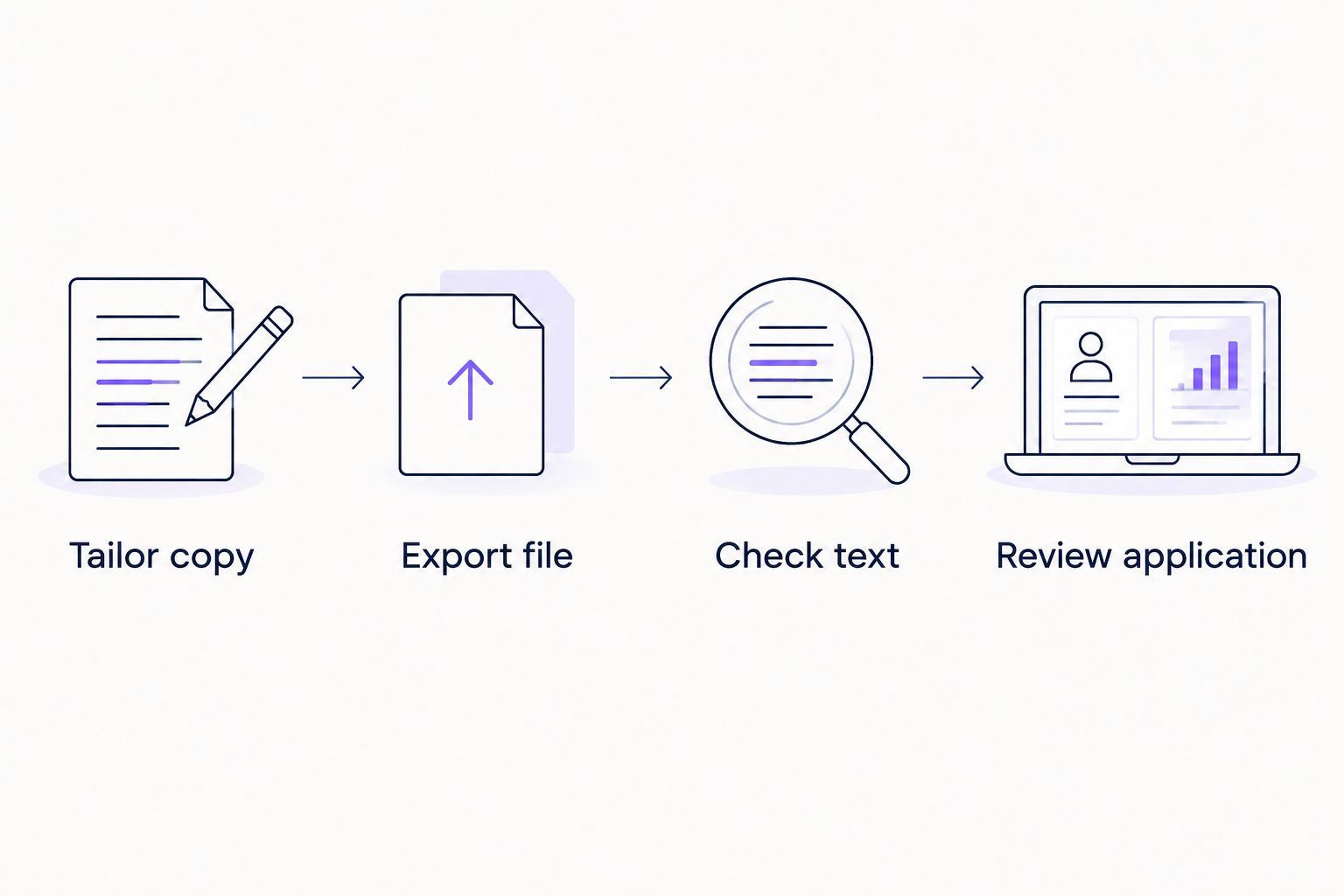
The core sequence is Tailor copy, Export file, Check text, and Review application. Keep the final review separate from document editing: errors can appear during field extraction even when the attachment itself is correct.
What the text check does not prove
Copying text into an editor exposes obvious reading-order problems. It does not reproduce every ATS parser or establish how an employer evaluates applicants.
Likewise, a successful upload proves that the portal accepted the file, not that every extracted field is correct. Review the form wherever the portal gives you access. No tool can promise an interview or an offer.
Updated-job workflow
When a vacancy changes, refresh the tailored copy rather than starting again or overwriting the master. This is a repeatable document workflow, not an automatic connection between Google Docs and an employer’s application system.
- Compare the revised description with the version you used. Identify changed responsibilities, qualifications, location requirements, and application instructions.
- Open the employer-specific copy. Update only the sections affected by the changed requirements, using verified experience.
- Download a fresh file and repeat the visual and plain-text checks. A small edit can still move a heading onto another page.
- Confirm that the application contains the replacement attachment before completing your review. If an application is already submitted, use only the employer’s stated method for updates.
Expected result: Your current application materials reflect the revised opening without silently changing the historical facts in your master résumé.
For a repeatable 2026 process, record the role, document version, and submission status in your own application log. This separates a prepared draft from an application you actually submitted.
Troubleshooting
The exported text appears in the wrong order
Sidebars, layout tables, and separately positioned content can disrupt reading order. Move résumé content into a single main text flow, export again, and repeat the plain-text check.
Do not fix this by adding duplicate hidden text. The document should communicate the same qualifications to a person and to a text extractor.
The PDF looks correct but text cannot be selected
The file can contain image-based content rather than usable text. Return to the editable Google Docs source and download a fresh PDF instead of using screenshots or scanned pages.
Try selecting and searching for text in the new export. If the portal specifies another accepted format, follow that instruction rather than forcing the PDF through.
The application assigns dates to the wrong job
Check that each date range appears next to its employer and role in the exported reading order. Separate entries clearly and avoid aligning dates in an unrelated column.
Correct the application fields manually where editing is available. Then inspect the remaining employment entries, not just the first error you noticed.
The Word export has an extra page
Open the DOCX export and inspect paragraph spacing, page breaks, and line wrapping. Remove unnecessary blank paragraphs or shorten repeated content in the source document, then export again.
Do not compress everything into tiny text. A shorter document is not an improvement if the employer cannot comfortably read it.
The upload is rejected
Read the portal’s error message and check its file-type and attachment-size requirements. Export an accepted format and confirm that the file opens before retrying.
Do not rename a PDF extension to DOCX or the reverse. Changing the filename does not convert the document.
Customize your workflow
Keep a master résumé and separate role-specific copies when your search covers different functions. Reuse verified evidence, not an unchanged summary that treats every opening as identical.
AmazApply supports application preparation, while you review and approve the materials. Its role does not remove the need to inspect exports or follow employer-specific instructions. Use drafting assistance under your rules, with factual checks before approval.
Make your 2026 review checklist explicit: correct employer, correct role, supported claims, readable export, accurate form fields, and intended attachment. Stop the process whenever one of those checks fails.
FAQ
How do I turn a Google Docs résumé into an ATS-ready document?
Use a straightforward layout, tailor only verified experience, download the employer’s requested file type, and inspect the exported text. After uploading, check any application fields populated from the résumé.
Is PDF or DOCX better for an ATS résumé?
The employer’s instructions determine whether PDF or DOCX is the better choice. When both are accepted, inspect the export you choose and correct any parsing errors shown in the application.
Can I submit a Google Docs link instead of a résumé file?
Submit a Google Docs link only when the employer explicitly requests or accepts one. A file-upload field requires a downloaded document in an accepted format, not a sharing link.
Does an ATS-ready résumé guarantee an interview?
No résumé format or tool can guarantee an interview. Readable formatting helps communicate your qualifications, but it does not establish that you meet the employer’s requirements.
How can I check whether my exported résumé contains readable text?
Select and copy text from the exported file into a plain-text editor, then inspect the sequence of headings, jobs, dates, and bullets. This catches obvious problems but does not reproduce every ATS parser.
Should I add every keyword from the job description?
Include a job-description term only when it accurately describes your experience or qualifications. Unsupported keywords create inaccurate claims rather than stronger evidence of fit.
Can AmazApply help tailor a Google Docs résumé?
AmazApply prepares tailored résumés and cover letters for individual job seekers to review and approve. Check every proposed claim against your verified experience, then separately inspect the final export and application fields.
One last thing
Read the application form as carefully as the attachment. A correct résumé can sit beside an incorrect employment date or job title populated during upload. Your final check belongs at the destination, not just in Google Docs.