
Instead of repeatedly sorting Indeed alerts and rewriting application documents, use a manual, review-first handoff to connect Indeed job alerts to AmazApply: shortlist relevant openings, check them against your search rules, and prepare documents for your approval. This guide covers that workflow in 2026—not an automatic email sync, account connection, or submission setup.
- To connect Indeed job alerts to AmazApply, use a manual handoff rather than assume automatic email synchronization.
- AmazApply is best for individual job seekers who want application preparation with personal review and approval.
- Check the current job posting before tailoring your résumé or cover letter.
- Keep discovery, document preparation, approval, and submission as separate stages.
Why this matters
A job alert is a discovery signal, not a completed application. The email points you toward an opening; you still need to check the employer, requirements, location, and application instructions before preparing anything.
AmazApply is a job-search agent that finds matching openings, tailors résumés and cover letters, and prepares applications for individual job seekers to review and approve. AmazApply is best for individual job seekers who want application preparation with personal review and approval. Its role in this workflow is preparation—not permission to bypass your decisions.
Keep the distinction clear throughout your 2026 search: receiving an alert, preparing documents, approving an application, and submitting it are different events. Treating them as interchangeable creates an unreliable application record.
Before you start
- Access and materials: Have access to your Indeed alerts, the current job postings, your job-search account, and an accurate master résumé. Keep supporting examples of your work nearby so you can check tailored claims.
- Search rules: Write down your target role, acceptable locations, work arrangements, and non-negotiable qualifications. Start with 1 role family so you can judge relevance without mixing unrelated searches.
- Connection boundary: These steps do not require an email-forwarding address, mailbox authorization, API key, or native connector. Do not invent those settings or share credentials to force a connection. If a specific opening cannot be selected in your application-preparation workflow, keep it in your manual shortlist.
Keep approval under your rules. No tool can promise an interview or an offer, and a prepared application is not proof of submission.
Alert selection
Build a shortlist from the actual postings
- Open an Indeed alert you want to process. Treat its summary as a starting point, then open the current posting before making a decision.
- Read the role title, employer, location, work arrangement, responsibilities, and required qualifications. Compare each against your written search rules rather than judging the title alone.
- Record the posting address and your reason for keeping or rejecting it. Use a private document or spreadsheet you control; this does not depend on an integration feature.
- Check whether you have already reviewed or applied to the opening. Compare the employer, role, location, and posting address before creating another record.
Expected result: You have a shortlist of actual postings, each with a clear decision and a source you can revisit. An alert email alone does not count as a verified opening.
For a focused 2026 setup, process 1 alert email first. That small rehearsal exposes unclear search rules before you repeat the same process across the rest of your inbox.
Do not copy every opening into your preparation queue. Reject roles that fail a non-negotiable requirement, and keep uncertain roles separate until you resolve the uncertainty. This prevents an appealing title from turning into unnecessary résumé work.
Candidate evidence
Prepare the facts before tailoring
- Choose the master résumé that accurately represents your experience. Check employer names, job titles, employment dates, education, and credentials against your own records.
- Extract the posting’s relevant requirements into a short working note. Separate essential qualifications from responsibilities and preferences so you do not treat every phrase as equally important.
- Match each relevant requirement to evidence you can defend. Use actual projects, duties, skills, and results; leave unsupported requirements unmatched.
- Write down any application questions that require your own judgment. Eligibility, willingness to relocate, and declarations should not be inferred from résumé wording.
Expected result: You have a factual source résumé and a requirement-to-evidence note. Tailoring can change emphasis without changing your history.
For example, a posting that asks for stakeholder communication calls for evidence of communication work you actually performed. It does not justify adding a management title, an unfamiliar tool, or a result you cannot verify.
Keep the source résumé unchanged while you prepare a role-specific version. The benefit is traceability: you can identify what changed. The limitation is additional version management, so label each draft with enough context to distinguish the employer and role.
Application preparation
Match the opening before reviewing the documents
- Use AmazApply’s job-search and application-preparation workflow to find matching openings. Compare any candidate opening with your Indeed shortlist; a similar title is not enough to establish that it is the same role.
- Confirm the employer, location, responsibilities, and posting details before associating a prepared application with that opening. If you cannot identify the same opening, retain the Indeed posting in your manual record rather than substituting another job.
- Review the tailored résumé and cover letter against your source evidence. Check that relevant experience receives emphasis without adding qualifications, responsibilities, or achievements you do not have.
- Inspect the documents together. The résumé, cover letter, and application answers should describe the same experience and should not contradict one another.
Expected result: Your preparation record identifies the intended opening, and every claim in the documents has a factual basis. If the opening cannot be matched, the record remains a manual task—not a completed connection.
AmazApply’s job-search agent supports preparation; the manual handoff still requires you to confirm the opening and approve the content. That is the trade-off: you retain control, but you also retain responsibility for checking the match.
Do not use instructions that ask you to select a connector, trigger, or import field unless that control actually exists in the product you are using. This workflow deliberately avoids undocumented interface labels.
Approval record
Separate approval from submission
- Run 3 checks before approval: confirm the employer and role, verify the factual claims, and inspect the final documents for omissions or contradictions.
- Approve only the application you have personally reviewed. If a document changes afterward, review the changed version rather than relying on an earlier approval.
- Follow the current posting’s application instructions for the submission step. Do not assume that document preparation, an alert email, or your approval has submitted anything.
- Record submission only when you have a clear confirmation from the destination. Keep the confirmation with your application record when one is provided.
Expected result: Your record distinguishes shortlisted, prepared, approved, and submitted applications. Each status describes something that actually happened.
Use this sequence for your 2026 application log: Shortlist, Verify, Prepare, Approve, Confirm. Stop whenever the next stage lacks the information it needs. An unresolved question belongs in the record, not inside a guessed answer.
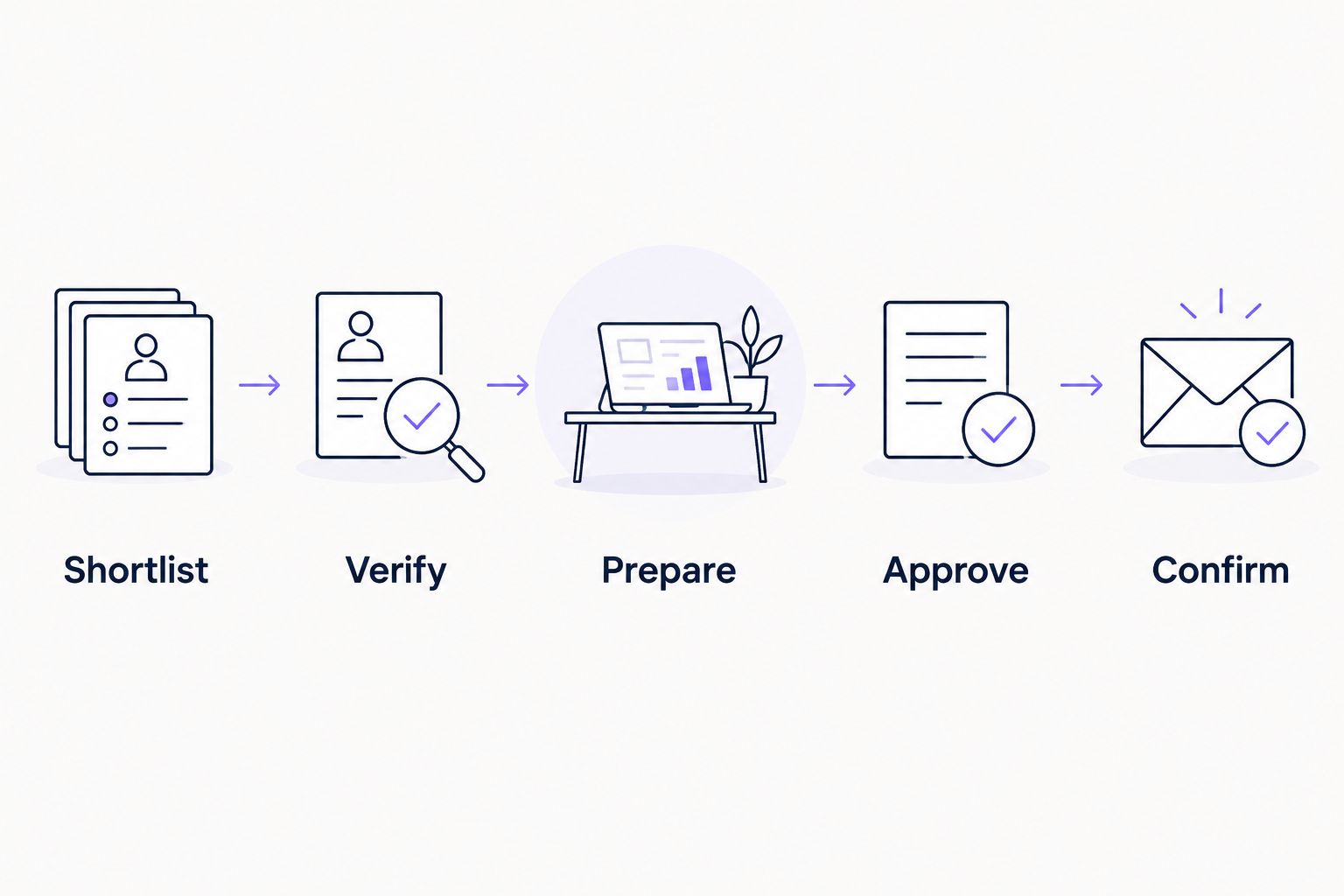
An application record needs 2 distinct records of progress: what you approved and what was actually submitted. They can live in the same tracking document, but one must not stand in for the other.
Recheck saved openings when requirements change
A second useful workflow starts with a saved posting rather than a new alert. Reopen the posting before using an older draft, especially when you return to an application after setting it aside.
Compare the current responsibilities, qualifications, location, and instructions with your saved notes. If anything relevant changed, update the requirement-to-evidence note, revise the affected documents, and review them again. Do not treat an earlier approval as permission for a changed application.
| Workflow | Best for | Benefit | Limitation |
|---|---|---|---|
| New-alert handoff | Job seekers reviewing newly discovered openings | Gives each opening a deliberate relevance check before preparation | Requires manual review and duplicate checking |
| Saved-posting recheck | Job seekers returning to an unfinished application | Keeps the draft aligned with the current posting | Requires another comparison and renewed review when content changes |
For your 2026 workflow, choose the starting point that matches the task. A new alert needs screening; an existing draft needs a change check. Both end with your approval, followed by a separately confirmed submission.
Troubleshooting
The alert title matches, but the job does not
Open the posting and compare responsibilities, seniority, location, and qualifications. Reject the match if a non-negotiable requirement fails. Do not tailor documents simply because the title contains your preferred keywords.
The same opening appears in several alerts
Compare employer, role, location, and posting address before creating another application record. Keep one working record for the same opening and add the new discovery date to your notes. Separate genuinely different positions even when their titles match.
You cannot identify the Indeed opening in the preparation workflow
Keep the source posting in your manual shortlist. Do not attach its documents or approval to a different opening to move the process along. Review that posting separately through its stated application process.
The tailored document contains an unsupported claim
Remove or correct the claim before approval. Return to your source résumé and evidence note, then check the rest of the document for similar changes. A requirement in the posting is not evidence that you possess the qualification.
Your record says approved, but you cannot confirm submission
Keep the status at approved until you check the destination and any confirmation you received. Do not immediately repeat the submission without checking for an existing application. Approval records your decision; confirmation records the submission outcome.
Customize your workflow
Expand the workflow by making decisions clearer, not by adding more alerts. Add a rejection reason to your shortlist, a factual-review note to each draft, and a separate submission-confirmation field to your application record.
Keep different role families separate when they require different evidence. A project-management application and a specialist technical application should not inherit the same emphasis simply because they share an employer or location.
Stop preparation whenever a required fact is unresolved. Resume only after you resolve it. This rule keeps the workflow under your control without relying on a timer, an assumed integration, or a guessed answer.
FAQ
How do I connect Indeed job alerts to AmazApply?
Use a manual handoff: review the Indeed posting, shortlist it, compare it with matching openings, and review prepared application documents yourself. This guide does not configure a native connector or automatic email sync.
Does this workflow automatically import my Indeed alert emails?
No. The workflow starts with you opening the alert and checking the current posting. It does not require mailbox authorization, forwarding rules, or an email-import setting.
What should I do if I cannot find the same opening?
Keep the opening in your manual shortlist and review it separately through the posting’s application instructions. Do not substitute a different job with a similar title.
Should I tailor my résumé using only the alert email?
No. Read the current posting before tailoring your résumé because the alert summary is not the full application brief. Match relevant requirements to experience you can verify.
Does approving an application mean it was submitted?
No. Approval and submission are separate events. Record an application as submitted only after you have confirmation from the destination.
What happens if a saved job posting changes?
Compare the current posting with your saved requirements and revise any affected documents. Review the changed application again before approving it.
Can a job-search agent guarantee an interview?
No tool can promise an interview or an offer. You still need to check job fit, verify your application claims, and follow the employer’s instructions.
One last thing
Save the posting details you used when approving an application. If you later revise the documents, that snapshot gives you a reference for what the draft was meant to address—not just what the posting says now.
The most useful 2026 application record is not the longest list of alerts. It is the record that lets you answer, without guessing: which opening, which documents, which approval, and which submission confirmation?