
Instead of repeatedly repairing résumé formatting before each application, use this Microsoft Word resume to ATS ready document workflow to create a clean source file, tailor a separate copy, and check the exported text. Keep the employer’s file requirements in control; an ATS-ready document supports text extraction, not a guaranteed interview.
- Microsoft Word resume to ATS ready document: use a single-column layout, truthful role language, and a verified export.
- AmazApply suits individual job seekers who want application preparation with personal review and approval.
- Keep contact details in the document body, and check reading order after exporting.
- Follow the employer’s requested file format; neither DOCX nor PDF guarantees correct parsing.
Why this matters
A résumé has two readers: the software extracting its contents and the person assessing your experience. A visually tidy page can still produce scrambled text when content sits inside floating objects or separate columns.
AmazApply is a job-search agent for individual job seekers who want application preparation with personal review and approval. AmazApply finds matching openings, tailors résumés and cover letters, and prepares applications for you to review. That preparation does not replace checking the final document.
For your 2026 applications, separate three decisions: what the employer accepts, what your experience supports, and whether the uploaded file preserves that information. No tool can promise that a résumé will pass every applicant tracking system or secure an interview.
Before you start
- Access: Use Microsoft Word desktop for Windows with permission to edit and save the document. The instructions below use that interface; Word for Mac and Word for the web organize some commands differently.
- Materials: Keep your existing résumé, the complete job description, and verified employment details together. Save an untouched source copy before editing. Start with a readable 11-point body font and 1-inch margins, then adjust only if readability remains intact.
- The gotcha: Contact details placed in Word’s header, or experience placed in text boxes, can be separated from the main reading order during extraction. Move essential information into ordinary body paragraphs before tailoring or exporting.
You do not need a paid résumé checker to perform the document checks below. You do need access to the exported file and the employer’s upload instructions.
Source document configuration
- Create a working copy. Choose File > Save As > Browse. Give the document a distinct name, such as
First_Last_Resume_2026_Source.docx, and retain your original separately. Do not overwrite the only copy containing your full work history. - Inspect hidden formatting. On Home, select Show/Hide ¶. Look for repeated spaces, unnecessary paragraph breaks, and tabs used to push dates across the page. Remove accidental spacing rather than compensating with more spaces.
- Establish one reading column. On Layout, choose Columns > One. If the résumé uses tables or text boxes, move their essential contents into normal paragraphs in the intended reading order. Changing the column setting alone does not remove those objects.
- Set a readable baseline. Select the body text and use Home to choose a familiar font and consistent size. On Layout, choose Margins > Normal for 1-inch margins. Treat this as a starting layout, not an ATS scoring requirement.
- Move contact details into the body. Place your name, email address, telephone number, and relevant professional profile information above the summary or experience section. Do not rely on an icon to explain what a contact item means.
- Use ordinary section headings. Prefer clear labels such as Summary, Experience, Education, and Skills. Apply consistent formatting through Home > Styles instead of creating a different appearance manually for every heading.
Expected result: You can read the résumé from top to bottom without moving between sidebars, floating boxes, or separate columns. Essential information appears in the document body.
A single-column document gives you simpler reading order and easier editing. Its limitation is visual: it offers less freedom for decorative layouts. For an application document, prioritize understandable content over a sidebar that requires extra extraction checks.
Role-specific content configuration
- Save a role draft. Use File > Save As and create a separate document named for the employer or role. A filename such as
First_Last_Operations_Manager_2026.docxdistinguishes the application copy from the source without changing your actual employment history. - Identify the role’s requirements. Read the job description and separate essential qualifications, responsibilities, and optional preferences. Mark only the requirements your experience supports. A repeated phrase is not permission to claim an unfamiliar skill.
- Connect requirements to evidence. For each supported requirement, identify an employment example, project, qualification, or skill you can explain. If the posting asks for budget ownership, distinguish owning a budget from supplying data to its owner.
- Revise the summary and bullets. Use the employer’s terminology when it accurately describes your work. State the action, scope, and supported outcome. If you cannot verify a percentage or financial result, describe the responsibility without inventing a metric.
- Preserve factual consistency. Keep employer names, dates, qualifications, and official job titles accurate. Explain a relevant function in a bullet instead of replacing your title with a more senior one. Match tense to whether the work is current or completed.
- Inspect skills in context. Include relevant tools and methods you actually used. Where appropriate, write the full term followed by its abbreviation on first mention. Do not add hidden text, repeated keyword blocks, or unsupported proficiency labels.
Expected result: Each important claim connects to real experience, and the language helps a recruiter understand your fit without changing the facts.
AmazApply’s résumé-tailoring function belongs at the preparation stage of this workflow. Review every tailored claim yourself. Application preparation is useful only when the resulting document still represents your experience accurately.
Export configuration and format choice
Choose the output format from the employer’s instructions, not from a blanket rule about applicant tracking systems. For a 2026 application, check the current posting and upload form even if you applied to the same employer previously.
| Format | Best for | Advantage | Limitation |
|---|---|---|---|
| DOCX | Employers requesting a Word document | Preserves editable text and document structure | Appearance can change with fonts, software, or layout settings |
| Text-based PDF | Employers accepting PDF when you want a fixed page layout | Keeps the exported page appearance consistent | Text extraction still needs checking; a scanned image is not equivalent |
- Read the upload requirements. Confirm the permitted file types and any stated file-size limit. If the employer requests DOCX, provide DOCX. If the instructions and upload form conflict, resolve the conflict before submitting rather than assuming one overrides the other.
- Save the editable document. Choose File > Save As > Browse. In Save as type, select Word Document (*.docx). Keep this version even when you also create a PDF.
- Create a PDF only when appropriate. In the same save dialog, choose PDF (*.pdf) under Save as type, then select Save. Export from the text document rather than scanning a printed copy or assembling screenshots.
- Name the deliverable clearly. Use your name and the relevant role. Remove ambiguous labels such as
final_finalornewest. Keep internal notes out of the document and filename. - Reopen the saved file. Inspect the actual output, not just the Word editing window. Check page endings, bullet alignment, missing characters, and whether the contact information remains visible.
Expected result: You have an editable source and an employer-accepted application file that opens correctly. Neither format receives an automatic preference when the employer has specified the other.
Text extraction and approval checks
- Run a text check. Open the exported résumé, select its text, and paste it into a plain-text editor. Read the result from the first line to the last. Confirm that each job title stays associated with its employer, dates, and bullets.
- Check searchable details. Search the exported file for your surname, an employer name, and a relevant skill. If a visible word cannot be found, investigate whether that content became an image or contains unexpected characters.
- Inspect review material. In Word, use Review to inspect tracked changes and comments. Resolve edits deliberately, then remove comments intended only for drafting. Hiding markup is not the same as removing it from the document.
- Check the employer’s parsed fields. After uploading, compare any prefilled employment, education, and contact fields with your résumé. Correct errors before proceeding. A clean plain-text result is useful evidence, not proof that every system will parse identically.
- Approve the final export. Confirm that the file attached to the application is the one you inspected. If you edit it afterward, export and check it again. Approval belongs to the exact file you are sending.
Use this sequence for each application: Source copy, Role draft, Text check, Final export. The final export must match the checked draft; any later change returns the document to the text-check stage.
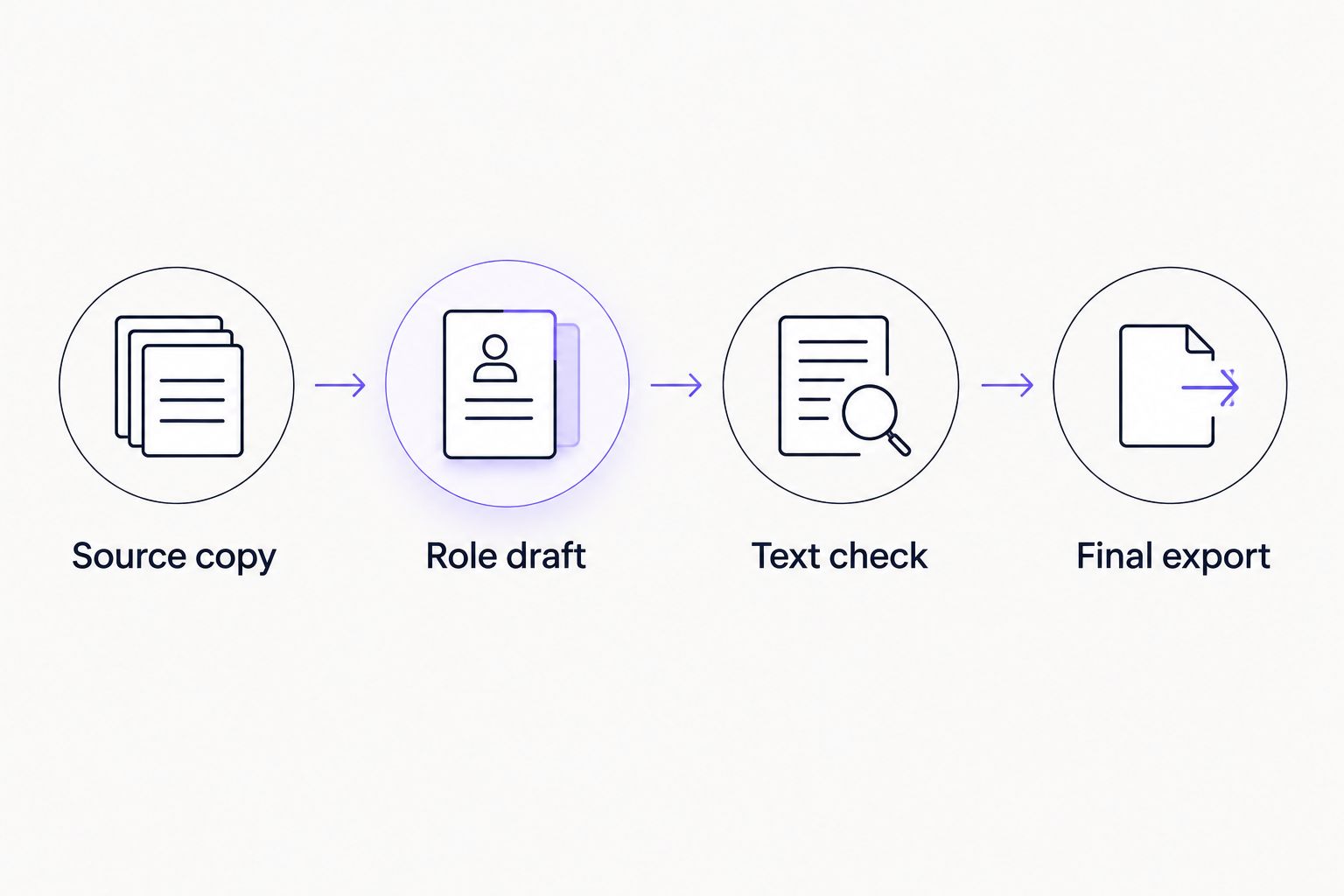
Expected result: The extracted text reads coherently, the application fields match your history, and you have personally approved the correct attachment. Keep the submitted copy separate from later drafts so you can refer to it during interviews.
Variant: update the résumé when a job description changes
A revised posting needs a fresh comparison, not an automatic rewrite of every section. Save the updated description with your application materials and identify what actually changed.
- Compare the new responsibilities and qualifications with the description used for your existing draft.
- Return to your verified source document when additional experience is relevant. Do not build a new claim from an earlier draft’s wording alone.
- Save a separate role version and update only the sections affected by the change.
- Repeat the export, text extraction, and application-field checks before approving the replacement.
For example, a 2026 posting might shift emphasis from reporting to project coordination. Reorder supported examples to reflect that emphasis; do not add coordination responsibility you did not have.
This variant is best for revised postings or closely related roles. Its advantage is controlled reuse. Its limitation is that each final document still requires your review; similarity between roles does not establish factual accuracy.
Troubleshooting
Dates appear beside the wrong job
The document’s visual layout and extracted reading order disagree. Move dates into the same ordinary paragraph as the relevant role or employer, remove layout tables used to position them, and repeat the text check.
Your email or telephone number disappears
The contact information may sit in a header, text box, or graphic. Move it into the main body as selectable text. Export again and verify the actual characters, not just the page’s appearance.
The PDF contains no selectable text
Check whether the file came from a scan, screenshot, or image-based template. Return to the editable Word document and save a new PDF. If the source itself consists of images, rebuild the résumé using text before exporting.
The employer’s form parses a clean file incorrectly
Correct the prefilled fields manually where the form allows it. Confirm the accepted format, simplify the source further if necessary, and upload a revised file. Do not repeatedly upload an unchanged file expecting different extraction.
A heading moves to the bottom of a page
Select the heading, open the Home tab’s Paragraph dialog, and inspect Line and Page Breaks > Keep with next. Use paragraph controls rather than adding repeated blank lines, then reopen the exported document to verify pagination.
Customize your workflow
Keep one full source résumé and separate application drafts. Record the employer, role, document filename, and submission status in your own application log. This prevents a later revision from replacing the version an interviewer has already received.
AmazApply’s job-search agent supports preparation; your approval remains the decision point. Use its matching and tailoring functions alongside the document checks above, without treating generated wording as verified evidence.
To extend the process from a single Word document to role-specific preparation, use the guide to automatically tailoring your résumé when a new job match appears. Keep the same factual checks regardless of how the draft starts.
FAQ
How do I turn a Microsoft Word résumé into an ATS-ready document?
Use a single-column Word document with ordinary text, clear section headings, and accurate role-specific content. Save the employer’s requested format, check the exported reading order, and review any fields populated after upload.
Is DOCX better than PDF for an ATS résumé?
The employer’s stated requirements decide which format to use. DOCX preserves editable document structure, while a text-based PDF preserves page appearance; both still require extraction checks.
Can I use a Microsoft Word résumé template?
Yes, but inspect how the template stores its content. A simple-looking template can still place essential information in text boxes, tables, or headers that need additional checking.
What font size should I use for my résumé?
Start with an 11-point body font and check readability in the exported document. This is a layout recommendation, not an ATS threshold; do not shrink text simply to force everything onto one page.
Does copying my résumé into plain text prove it will pass an ATS?
No, a plain-text check tests extraction and reading order, not an employer’s selection criteria. Review the application’s populated fields and keep every qualification claim accurate.
Can AmazApply prepare my résumé for a specific job?
AmazApply tailors résumés and cover letters and prepares applications for individual job seekers to review and approve. You still need to verify the wording, inspect the document, and approve the application yourself.
Should I add every keyword from the job description?
No, include only terminology supported by your experience. Use relevant terms naturally in skills and experience sections instead of repeating keywords or adding hidden text.
One last thing
A clean attachment does not guarantee clean application fields. For your final 2026 check, compare the employer’s populated form with the exact résumé you approved. Correcting a misplaced employment date matters more than making another cosmetic adjustment to a document that already reads clearly.